Autoship & Save

How Autoship works

Choose your Autoship eligible items and your delivery schedule.

Get your items delivered automatically, right when you need them.

Once you're on Autoship, you save 5% on every order.

Update, skip, or cancel anytime.
Reasons to love Autoship

No Commitment. No fees.
We get it, sometimes life and pets are unpredictable, so we make it easy to change, skip or cancel any order anytime, all without any fees, ever.
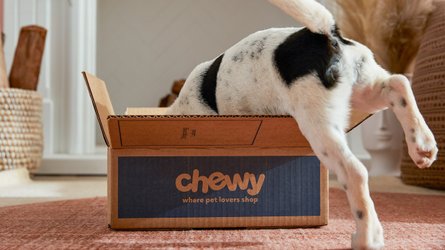
Priority service
Even if we’re running low on your products, you get priority so you can always count on what you need showing up on your doorstep. What a relief.
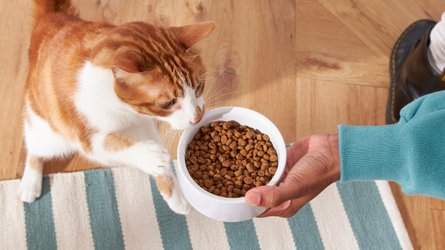
Zero guesswork
We’ll keep you in the loop on your delivery status so you know exactly when to expect it or make changes to your order before it ships.
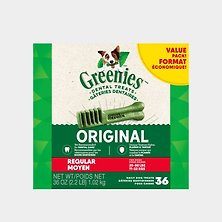
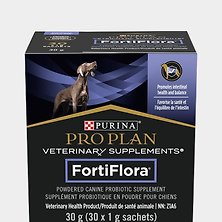
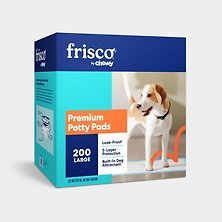

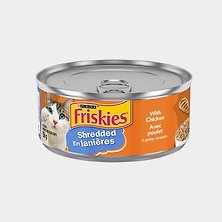

Autoship bestsellers
- Blue Buffalo Life Protection Formula Adult Chicken & Brown Rice Recipe Dry Dog Food, 11.7-kg bagCA $66.98 Chewy Price$72.99 List PriceCA $63.63 Autoship Price
- Royal Canin Size Health Nutrition Small Adult Dry Dog Food, 6.356-kg bagCA $78.99 Chewy Price$82.99 List PriceCA $75.04 Autoship Price
- Inaba Churu Tuna & Chicken Variety Pack Lickable Cat Treats, 14-g tube, 50 countCA $47.00 Chewy Price$49.99 List PriceCA $44.65 Autoship Price
- Old Mother Hubbard by Wellness Classic Bac'N'Cheez Natural Small Oven-Baked Biscuits Dog Treats, 567-g bagCA $7.83 Chewy Price$8.99 List PriceCA $7.44 Autoship Price
- Tidy Cats LightWeight 24/7 Performance Multi-Cat Cat Litter, 7.71-kg pailCA $28.88 Chewy Price$34.97 List PriceCA $27.44 Autoship Price
- Merrick Purrfect Bistro Grain-Free Real Chicken + Sweet Potato Recipe Adult Dry Cat Food, 1.81-kg bagCA $27.19 Chewy Price$32.99 List PriceCA $25.83 Autoship Price
- DealNutrience Indoor Cat Grain-Free Turkey Chicken & Duck Formula Dry Cat Food, 5-kg bagCA $36.99 Chewy Price$55.99 List PriceCA $35.14 Autoship Price
- Wellness Complete Health Chicken & Herring Formula Grain-Free Canned Cat Food, 85-g can, case of 24CA $66.96 Chewy PriceCA $63.61 Autoship Price
- Wellness Large Breed Complete Health Adult Deboned Chicken & Brown Rice Recipe Dry Dog Food, 13.6-kg bagCA $99.99 Chewy PriceCA $94.99 Autoship Price
- Friskies Greatest Hits Variety Pack Wet Cat Food, 156-g, case of 32CA $25.96 Chewy Price$31.99 List PriceCA $24.66 Autoship Price
- Blue Buffalo Tastefuls Natural Sensitive Stomach Adult Chicken & Brown Rice Dry Cat Food, 6.8-kg bagCA $59.99 Chewy Price$67.99 List PriceCA $56.99 Autoship Price


Frequently Asked Questions
Getting Started with Autoship
How does Autoship work?
How do I choose a frequency?
Managing Your Autoship
How do I cancel my Autoship?
How do I reschedule or delay my Autoship?
How can I add or remove items in my Autoship?
*Maximum savings of CA $20. For Autoship eligible items only. Some exclusions apply. Discount automatically applied when Autoship is selected at checkout. No coupons necessary. Terms apply.